Send and mark invoices
Review the invoice list, open detail, send by email, and mark payments.
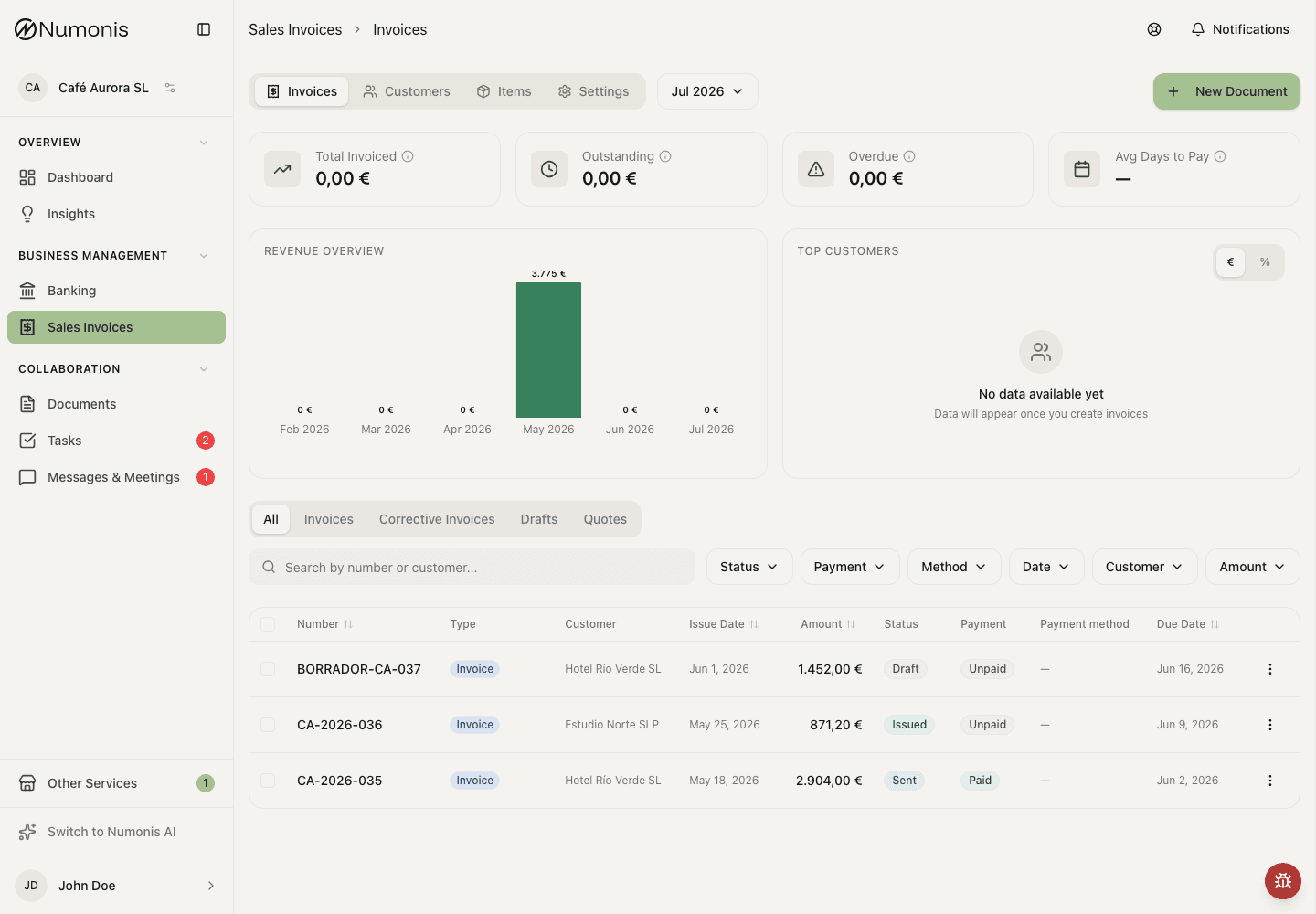
The list lets you filter documents, review amounts, and open quick actions.
The Sales invoices list shows drafts, issued invoices, sent invoices, unpaid invoices, and paid invoices. From there you can open detail and perform actions.
When you select documents, the bulk action bar shows their combined total. Corrective invoices reduce the total instead of increasing it, and selections containing more than one currency show a separate total for each currency.
How to open an invoice
- Open Sales invoices.
- Enter the Documents tab.
- Use filters or search if there are many invoices.
- Press an invoice to see detail.
How to send a document
- Open an issued invoice, or a finalized quote or proforma.
- Press Send.
- Review recipient, subject, and message.
- Confirm sending.
- Check email activity in the detail page.
Draft quotes and proformas must be finalized before Send appears.
How to send several invoices
- Open Sales invoices and enter the Documents tab.
- Select the invoices you want to send.
- Press Send in the bulk action bar.
- Review the confirmation and continue.
- If some invoices cannot be sent, review the summary. Numonis still sends the eligible invoices.
Bulk send uses each customer's saved email address, the invoice language, and your configured email templates. It is available for Issued and Certified invoices only.
How to download several PDFs
- Open Sales invoices and enter the Documents tab.
- Select the documents you want to download.
- Press Download PDFs in the bulk action bar.
- Save the ZIP file when your browser asks.
Bulk PDF download is available for selected documents that already have a generated PDF. When you select several documents, Numonis downloads them together in one ZIP file. Drafts are skipped until invoices are issued or quotes and proformas are finalized.
How to create a SEPA direct-debit file
- Under Payment methods in invoicing settings, expand Direct debit, turn on SEPA direct debit files, and save your creditor legal name, creditor identifier, and IBAN. Save a BIC too only if you will create legacy
pain.008.001.02XML files. - Add a complete direct debit mandate to each customer you plan to collect from. A file without the customer's mandate or debtor IBAN may be rejected and cannot reliably collect the payment.
- Set Direct debit as the payment method on each invoice.
- In Documents, select all invoices for the collection.
- Press Create direct debit file.
- Choose
pain.008.001.08(the current default), legacypain.008.001.02, or the Spanish C19.14 TXT format, then select a collection date from tomorrow onward. - Press Generate and download, then submit the downloaded file through your bank's usual channel.
The selected documents must all be positive EUR standard or simplified invoices in Issued, Certified, or Sent status, with an Unpaid or Overdue payment status and a current customer. Numonis validates the full selection before creating a file. If only some invoices are invalid, the dialog lists them and lets you create the file with the valid invoices; the listed invoices are excluded. Creditor-setting errors must be fixed before any file can be created.
Numonis always requires a debtor IBAN. An invoice whose customer has no IBAN is invalid and can only be excluded from the generated file; Create anyway cannot override it. If the debtor IBAN exists but no mandate is saved, Numonis shows a warning instead of excluding the invoice. Press Create anyway to include it with a recurring sequence and blank mandate reference, signature date, and BIC. This override applies to every available format, but the bank may still reject the record. An incomplete or invalid saved mandate remains an error and cannot be overridden.
While SEPA direct debit files is turned on, Create direct debit file is available for every non-empty document selection. Numonis checks the full selection only when you generate the file, so the action remains available even when one or more selected documents are ineligible.
In XML files, invoices for the same customer are combined into one debit transaction. Their amounts are added together, and their invoice numbers appear in the remittance information. Recurring and one-off mandates are placed in separate payment groups. C19.14 instead creates one fixed-width debit record per invoice, using an invoice-based debit reference. Choose C19.14 only if your bank accepts that Spanish flat-file format; it requires a Spanish creditor IBAN but does not require creditor or debtor BICs.
Creating the file does not mark invoices as paid or change any invoice state. Numonis does not record whether you submitted the file to your bank. A one-off mandate can therefore be downloaded more than once, so do not submit the same collection twice.
How to mark an invoice as paid
- Open the invoice.
- Press Mark as paid.
- Confirm the action.
- Check that the payment status changes to Paid.
How to mark several invoices as paid
- Open Sales invoices and enter the Documents tab.
- Select the invoices that have been collected.
- Press Mark paid in the bulk action bar.
- Confirm the action.
- Review any skipped invoices in the result summary.
Bulk mark paid is available for receivable invoices in Issued, Certified, or Sent status that are not already paid. Quotes, proformas, and decrease corrective invoices are skipped.
How to mark an invoice as unpaid
- Open the invoice.
- Press Mark as unpaid if the action appears.
- Confirm the action.
- Check that the payment status changes to Unpaid.
Actions that depend on status
- In Draft, you can edit and preview. Fiscal documents can be issued; quotes and proformas can be finalized.
- In selected Draft or Error fiscal documents, you can use bulk Issue. Quotes and proformas are skipped.
- In Issued, Certified, or Sent, you can download PDFs, send by email, and mark as paid when appropriate.
- In compatible invoices, you can create a corrective invoice.
- In compatible quotes or proformas, you can use Convert to Invoice after saving or finalizing.