Understand the dashboard
What appears on the Numonis dashboard and how to use it to know what needs your attention.
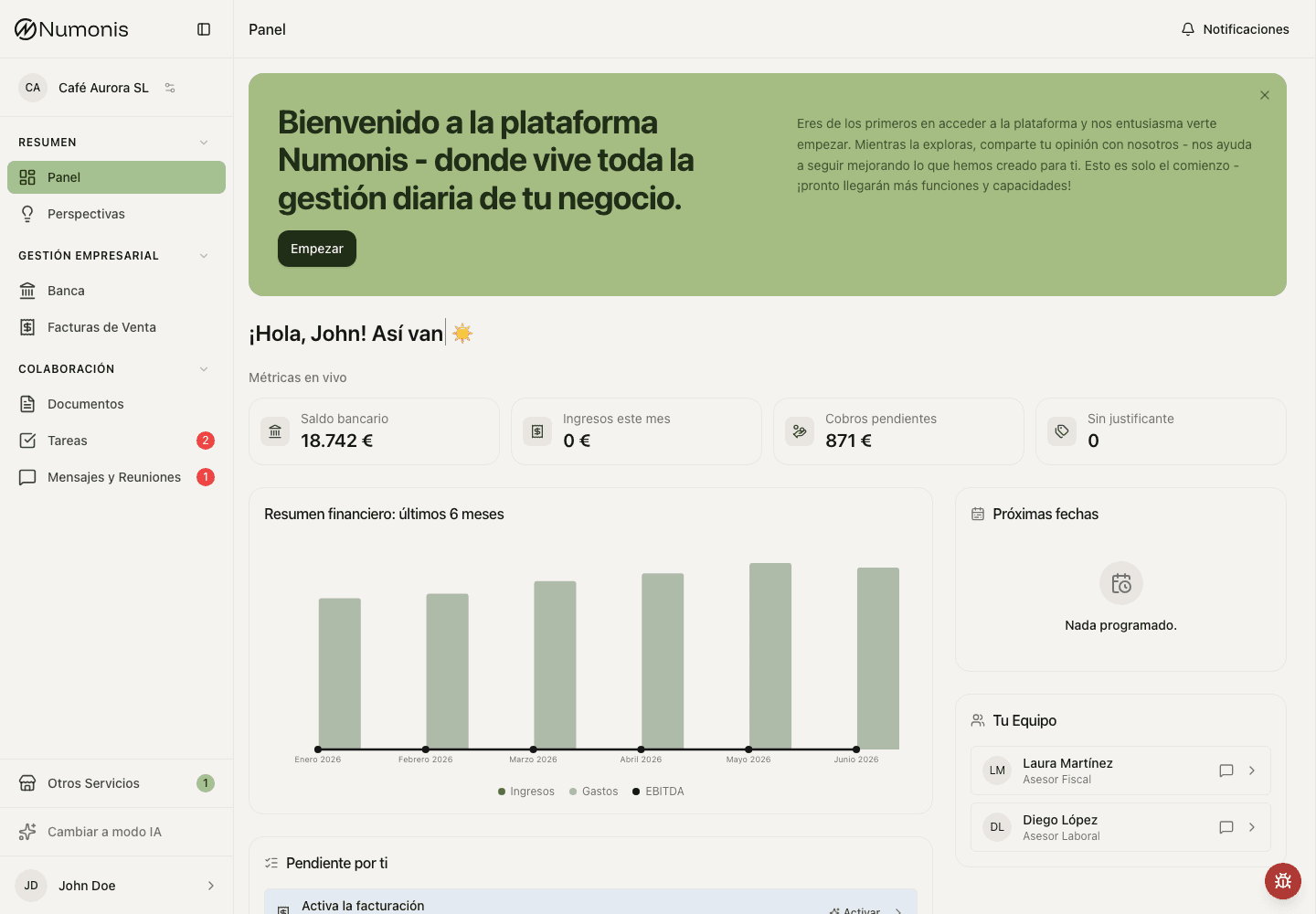
The dashboard combines business metrics with concrete actions so you can continue the work.
The screenshot shows the dashboard without financial management. Recapture is pending for the new sidebar, where Sales comes before Banking.
The dashboard summarizes what needs your attention: pending documents, tasks, upcoming deadlines, financial metrics, and quick actions.
How to get there
- In the sidebar, press Dashboard.
- On mobile, press Dashboard in the bottom navigation.
What you can do
- Review the welcome message and quick actions.
- To create an invoice, open Sales, enter Sales invoices, and press New Document.
- Review Asked of you to see pending tasks or documents.
- Review What's coming up to prepare closings, taxes, or payments.
- Check the metric cards to see revenue, expenses, and recent trends.
- Use your Numonis team card to see who manages your account.
With financial management
When your accountant turns on financial management, the dashboard shows more information:
- In Live metrics, the To collect card replaces Receivables. It shows the open amount of your sales invoices, the same amount as Sales › To collect. It includes the sales invoices that you upload and the open part of partially paid invoices.
- The To pay card comes after it. It shows the open amount of your purchase invoices, the same amount as Expenses › To pay.
- Press one of these cards to open its tab.
- Asked of you shows Confirm N bank payments when Numonis found bank payments for open invoices. The line below tells how many are on each side, for example "3 to pay · 2 to collect". Press it to open the invoice list of the side with more payments, then press Review match to review a suggestion. When both sides have the same number, it opens To pay.
Financial overview
The Financial Overview: Last 6 Months chart uses the reports available in Insights. For each displayed month, it shows revenue, expenses, and EBITDA. Expenses include cost of sales and operating expenses, using the same calculation as Insights. Compare the same month in both views to check the amounts, including months with expenses and no revenue.
If the dashboard is empty
The dashboard may be almost empty if you have just started, if you have not uploaded documents yet, or if no reports are available. Start by uploading documents and connecting banks so Numonis can show more information.