Document types and drafts
Understand invoices, simplified invoices, corrective invoices, proformas, quotes, and actions from document detail.
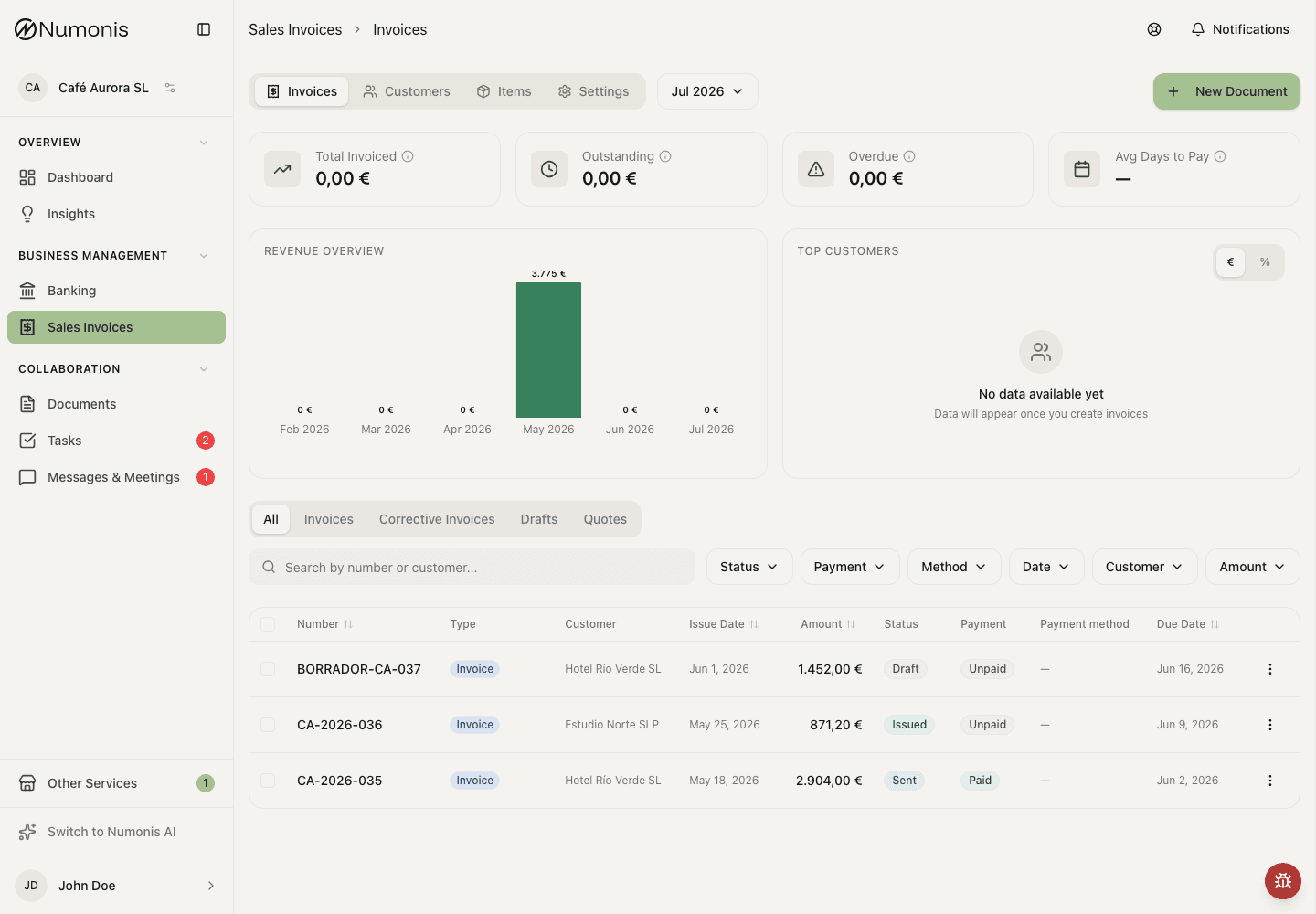
The list lets you filter documents by type, sent status, payment, date, customer, and amount.
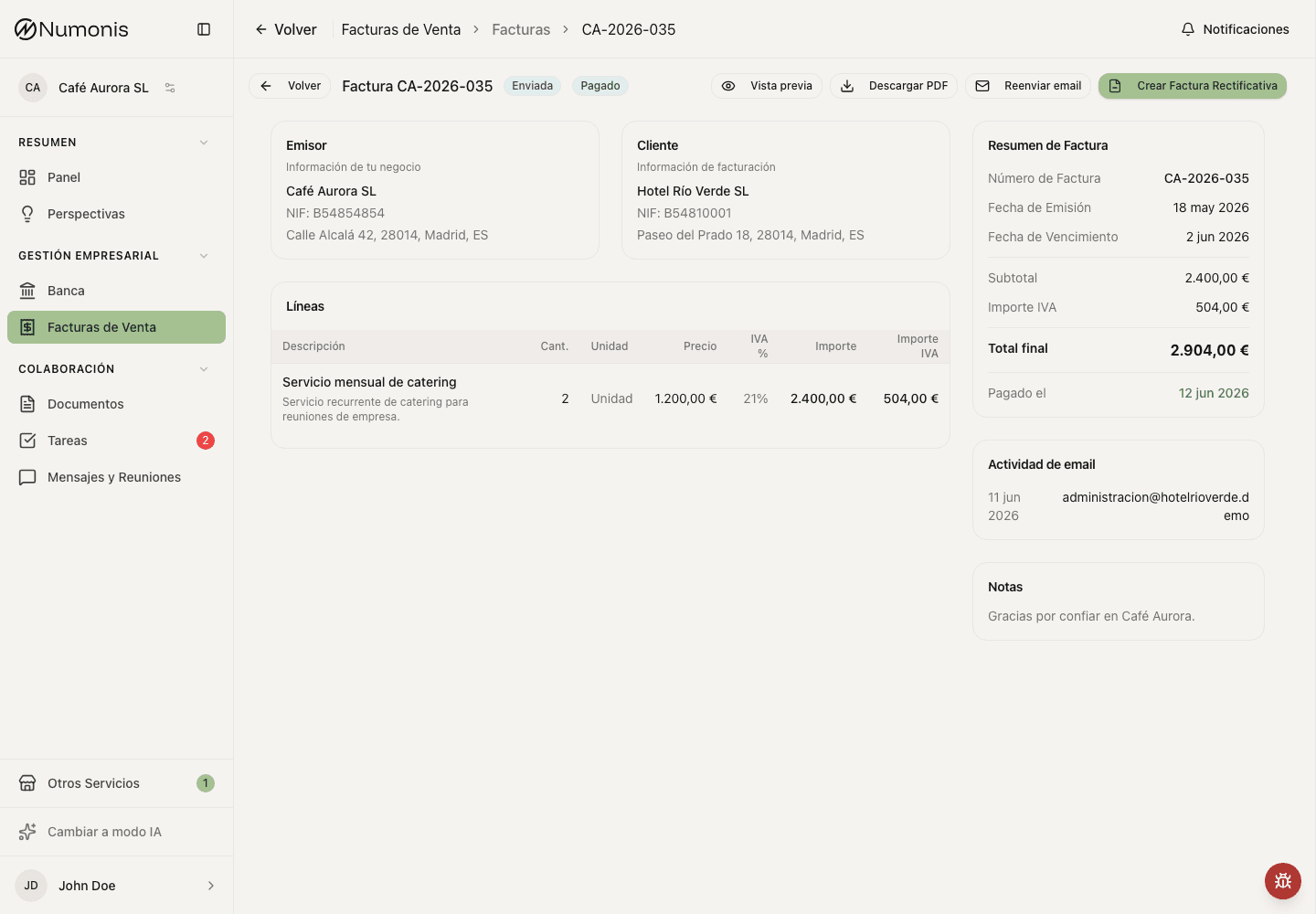
Document detail shows actions such as edit draft, edit eligible invoices, finalize quotes or proformas, issue, send, download, mark as paid, or create a corrective invoice.
Sales Invoices can show several sales document types depending on your account configuration. They do not all have the same fiscal effect or available actions.
How to choose a document type
- Open Sales Invoices.
- Press New.
- Choose the document type Numonis shows.
- Complete the data and save, preview, finalize, or issue it as appropriate.
You can change Document type without discarding the data already entered. The same selector is available when you edit a draft. If you switch to Corrective invoice, select the original invoice before saving or issuing it. The type cannot be changed after the draft stage.
Document types
- Invoice: standard sales document for goods or services.
- Simplified invoice: sales document for allowed lower-detail cases.
- Corrective invoice: corrects a previously issued invoice or simplified invoice.
- Proforma invoice: commercial proposal without fiscal effect, if available in your account.
- Quote: estimate sent to a customer before work is confirmed, if available in your account.
Filter issued and sent invoices
Use the Status filter in All, Invoices, or Corrective Invoices:
- Issued shows fiscal documents that are ready but have not been sent yet. This includes certified invoices.
- Sent shows fiscal documents whose current version was sent by email from Numonis.
The filter does not include quotes or proformas. Switching to Drafts or Quotes clears it.
Common statuses
- Draft: you can edit and preview it before issuing a fiscal document or finalizing a quote or proforma.
- Processing: Numonis is generating or registering the document.
- Issued: the document officially exists. Unpaid non-certified invoices and corrective invoices may still show Edit invoice if no corrective invoice has been issued for them.
- Certified: the invoice was issued with certification when that option is active.
- Sent: the document was sent by email from Numonis. If you edit an eligible sent invoice, send the corrected invoice again.
- Unpaid: payment has not been marked as received.
- Paid: payment has been marked as received.
- Error: details must be corrected or an action retried.
- Cancelled: the document should no longer be used as an active document.
Edit a draft or eligible invoice or corrective invoice
- Open Sales Invoices.
- Enter Documents.
- Filter by Drafts or search for the document.
- Open the document.
- Press Edit draft or Edit invoice if the action appears.
- For a draft, change Document type if needed, then correct the remaining data and save.
- If you edited a sent invoice, send it again so the customer receives the corrected PDF.
Create a corrective invoice
- Open the invoice you need to correct.
- Press Create corrective invoice if the action appears.
- Review the original invoice selected.
- Enter the correction reason.
- Adjust amounts, taxes, and lines.
- Issue the corrective invoice when it is ready.
Certified invoices, paid invoices, documents linked to certification processing, and documents that already have a corrective invoice cannot be edited directly. Use a corrective invoice or ask Numonis before acting.
Finalize a quote or proforma
- Open the draft quote or proforma.
- Press Preview & Finalize from the create or edit page, or Finalize from detail.
- Review the PDF preview before confirming.
- Confirm finalization only when the document is ready to freeze.
- Return to detail to download, send, duplicate, or convert it.
Finalizing assigns the quote or proforma number and freezes the document. It does not certify the document or create fiscal accounting effects.
Convert a quote or proforma into an invoice
- Open the quote or proforma if your account uses that document type.
- Press Convert to Invoice if the action appears.
- Review customer, dates, lines, and taxes.
- Issue the resulting invoice.
- Return to detail to download, send, or mark it as paid.
Common problems
I do not see the type I need
Some types depend on invoicing configuration or the status of the original document. Review Settings or write to Numonis.
I cannot edit an issued invoice or corrective invoice
Only unpaid, non-certified issued or sent invoices and corrective invoices without a corrective invoice can be edited directly. If the document is paid, certified, processing, already corrected, or does not show Edit invoice, create a corrective invoice or ask Numonis.
Convert to Invoice does not appear
The action only appears for compatible quotes or proformas in allowed statuses.