Sales invoices
Email delivery status
Understand the delivery statuses shown for invoices you send by email.
When you send an invoice by email, Numonis tracks what happens to that message and shows the result in the Email Activity card on the invoice detail. This lets you confirm the invoice reached your customer without leaving the platform.
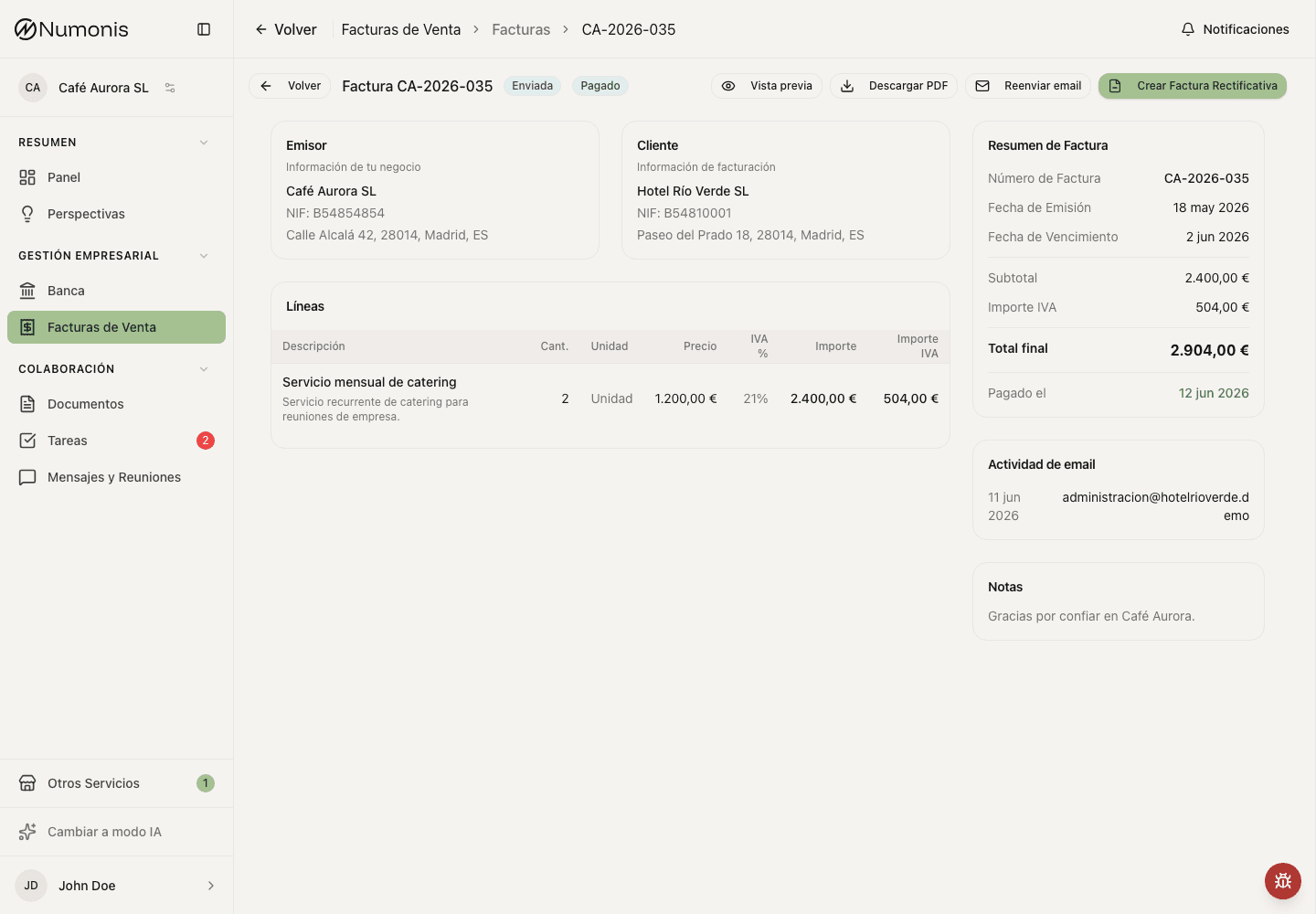
The Email Activity card lists each send with its date, recipient, and a delivery status.
Invoices whose most recent send failed also show a red warning mark next to their number in the invoice list, so you can spot delivery problems without opening each one.
How to check delivery status
- Open Sales invoices.
- Press the invoice you sent.
- Find the Email Activity card on the detail page.
- Read the status shown for each send date and recipient.
What each status means
| Status | What it means |
|---|---|
| Sent | The email left Numonis and is on its way to the recipient. |
| Delivered | The email reached the recipient's mail server. |
| Opened | The recipient opened the email. |
| Bounced | The email could not be delivered. Hover the status to see whether it was a hard bounce (permanent — a wrong or non-existent address) or a soft bounce (temporary — a full mailbox or a busy server). |
| Rejected | The recipient's mail server refused the email. |
| Marked as spam | The recipient reported the email as spam. |
What to do if an email does not arrive
- Bounced or Rejected: check the recipient's email address for typos, then send the invoice again. Hover the status to see whether the bounce was hard (permanent — fix the address) or soft (temporary — try again later).
- Marked as spam: ask your customer to look in their spam folder and mark the message as "not spam" so future invoices reach the inbox.
- Still showing Sent after a while: delivery confirmation can take a few minutes. Reopen the detail page to see the latest status.