Review and reconcile bank transactions
Filter bank transactions, open details, and link documents from the transaction detail.
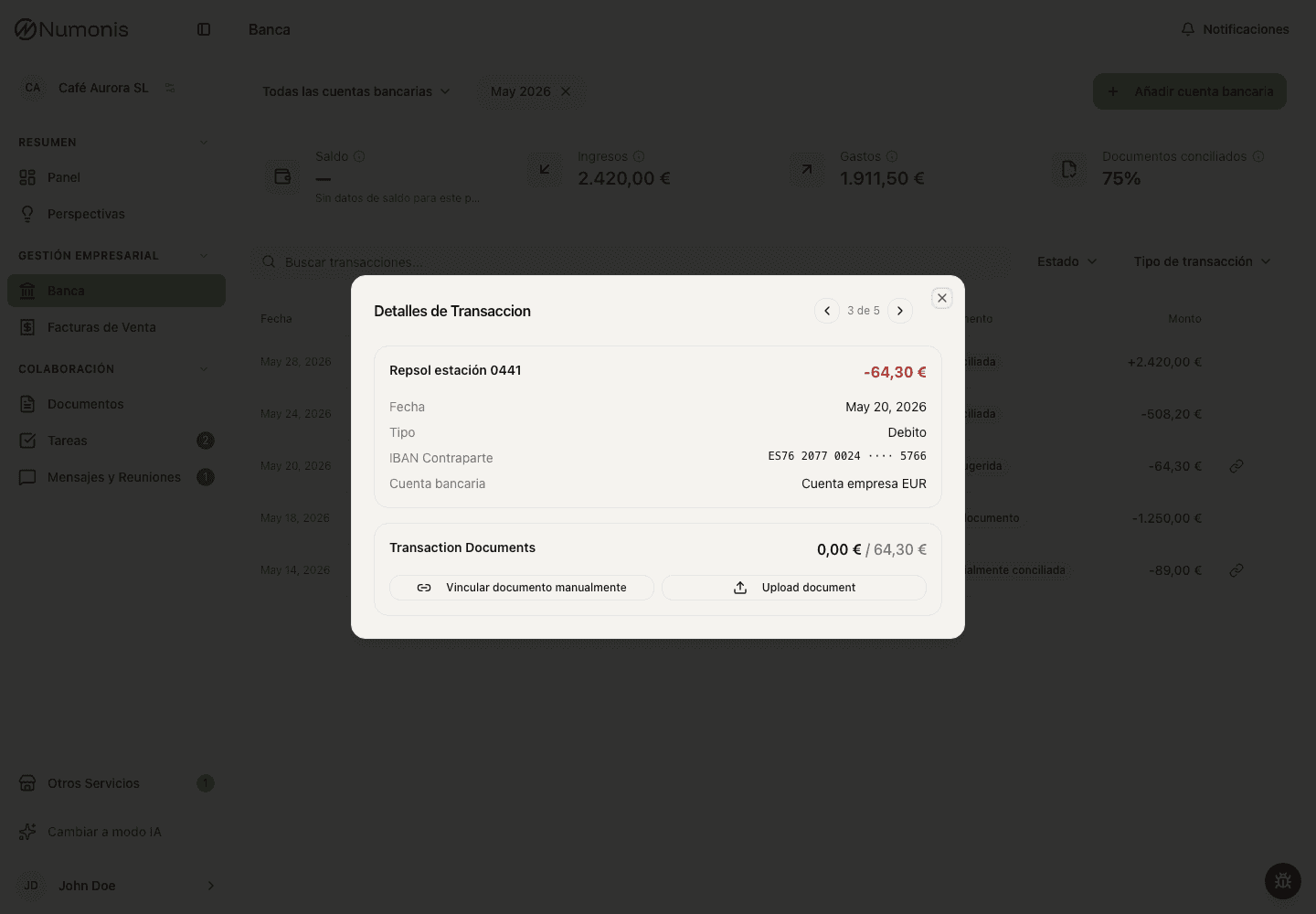
The transaction detail shows amount, date, supplier or customer, match status, and linked documents.
The transaction list helps you see which income and expenses are already linked to documents and which need attention before your accountant can finish review.
How to review transactions
- Open Banking.
- Select the bank account if you have more than one.
- Change the period from the date selector.
- Use search to find supplier, customer, or description. You can also search by amount, with or without thousands separators (for example
1573,97or1.573,97) — a whole number like2000finds any transaction of 2,000-and-something euros, in or out. - Filter by income, expenses, document status, or an amount range (minimum, maximum, or both).
- Press a transaction to open its detail.
Each transaction in the list also shows the account balance after it in the Balance column. A dash means the bank did not supply a balance for that transaction.
When you select a past period, the Balance card shows the account balance at the end of that period. Most banks report a balance with every transaction and Numonis uses it directly. Some banks do not — there Numonis reconstructs the period-end balance from the current balance and the complete movement history, and shows it only while that history fully reconciles with the bank. If the balance cannot be determined reliably, the card shows No balance data for this period.
What document status means
-
Matched: the transaction is linked to an invoice or document.
-
Partial: there is a partial match and information may be missing. If the paid amount is slightly different from the invoice — for example a payment of 0,01 € less — your accountant can accept the difference and mark the transaction as matched.
A linked invoice shows how much of it is already matched and how much is still open. Those amounts count every transaction linked to that invoice, so an invoice paid in instalments shows what is left after all of them. A leftover of 0,01 € stays visible.
-
Missing: Numonis has not found the related document yet.
-
No document needed: you or your accountant marked that this transaction does not require supporting documentation. Transactions dated before you started working with Numonis also show this status automatically — nobody will chase documents for that history.
-
No document needed?: Numonis detected a bank fee, tax, or similar charge that usually needs no supporting document. Your accountant confirms it with one click.
How to link a document
There are two ways to match a document to a transaction:
- Open the transaction detail and choose Link document manually to select a document that already exists in Documents.
- Open the transaction detail and choose Upload document to upload a file directly from the transaction detail.
The document picker shows documents that flow the same way as the transaction — sales invoices for money in, purchase invoices for money out. Choose Show all documents to see everything. You can also search by amount, with or without thousands separators (for example 1573,97 or 1.573,97).
If you do not know which document matches a transaction, contact your accountant through Messages & Meetings and include the bank account, date, amount, and counterparty.
How to mark that no document is needed
Some transactions have no supporting document — bank fees, taxes, payroll, or transfers between your own accounts. If you know a transaction needs no document:
- Open the transaction detail.
- Choose No supporting document required.
- Select the reason that fits best. If you choose Other reason, briefly describe it.
Your accountant sees the reason you selected, so they can finish the review without asking you for the document. If you marked a transaction by mistake, open it again and choose Requires a supporting document.
You can also mark several transactions at once:
- Select the transactions with the checkboxes in the list. A bar shows how many are selected and their total amount.
- Choose No document needed in the bar.
- Select one reason — it applies to the whole batch.
Only transactions that still miss a document get marked. The rest are skipped and listed afterward.
How to export transactions for accounting
Operators can export a period from Banking. The Excel workbook includes:
- Asientos: one transaction per row, including its bank account and that account's balance after the transaction when supplied by the bank.
- Remesas: incoming batch collections matched to at least two customer invoices with assigned subaccounts. Each row shows the invoice, customer, subaccount, and collected amount.
Supplier payments, collections matched to a single invoice, and invoices without a customer subaccount are not included in Remesas.