Tasks
Use tasks
Check open tasks, respond to urgent requests, and mark accountant requests as completed.
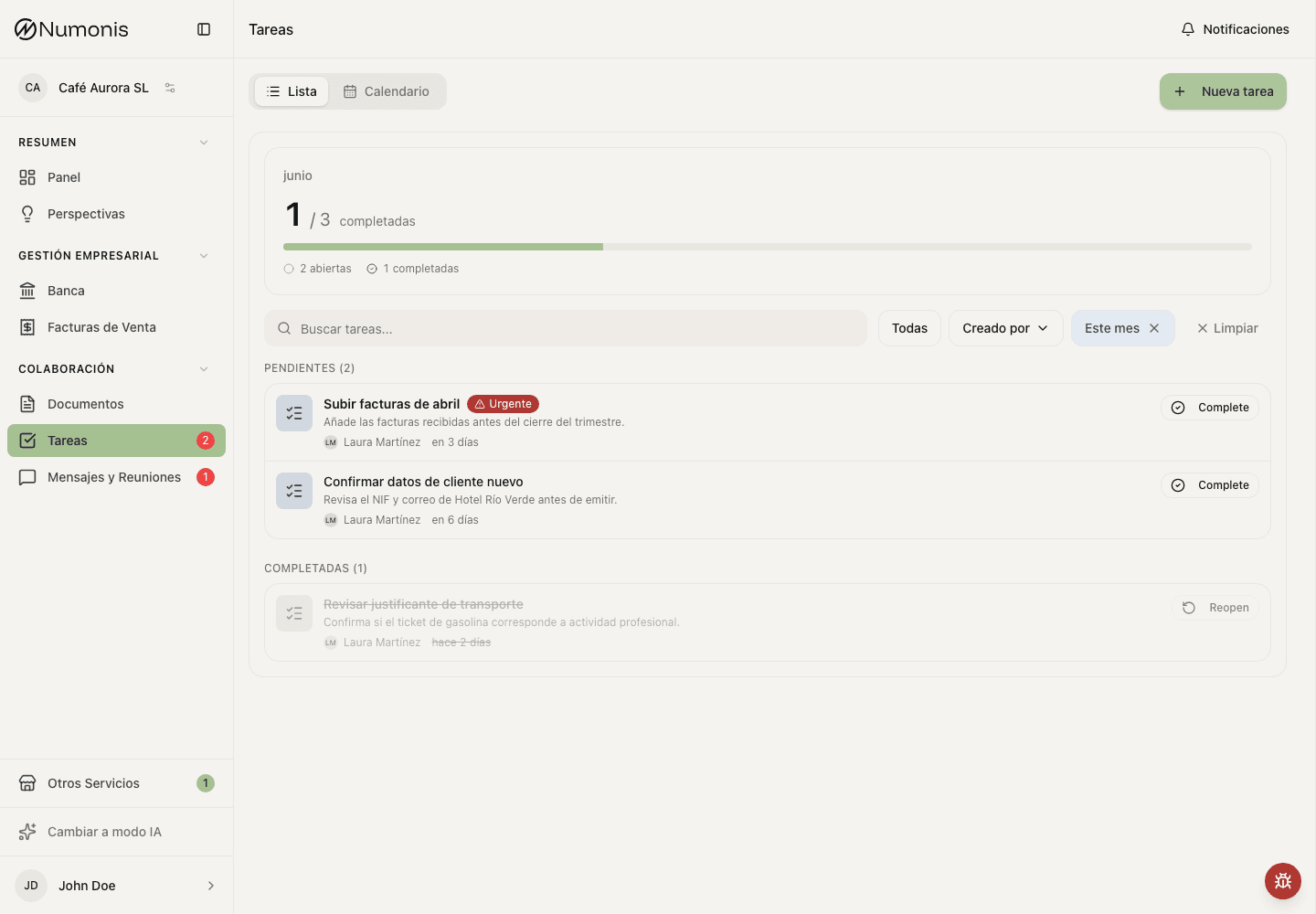
Use filters to distinguish pending, urgent, and completed tasks.
Tasks turn accountant requests into clear actions. Each task has a title, description, deadline, status, and sometimes attached context.
How to get there
- In the sidebar, press Tasks.
- On mobile, open More and press Tasks.
What a task is
A task is not a chat thread. It is a specific action the Numonis team needs from you, such as:
- Uploading a missing invoice or receipt.
- Confirming what a bank transaction was for.
- Answering a month-end or quarter-end question.
- Reviewing customer, invoice, payroll, or payment information.
If you need to ask a new question, use Messages & Meetings. If the question is about an existing task, open the task and use the available reply or message action when present.
You cannot send tasks to Numonis from the client side. If you need your accountant or payroll specialist to do something, send a message and include the deadline if it matters.
How to complete a task
- Open Tasks.
- Press a pending task.
- Read the description, deadline, and priority.
- Perform the requested action, such as uploading a document or confirming data.
- Add any requested explanation.
- Press Mark as completed.
How to review completed tasks
- Open Tasks.
- Change the filter to completed tasks.
- Open a task if you need to check what was resolved.
- If the task becomes necessary again, use the reopen action when available.
Tips
- Prioritize urgent tasks or tasks close to the deadline.
- An urgent task is marked that way by your accountant or payroll specialist because the timeline or impact is critical.
- If a task asks for a document, upload it from Documents and return to the task to mark it as completed.
- If a task is urgent and you cannot complete it, write to Numonis from Messages & Meetings and explain why.
- Do not mark a task as completed until the requested action is actually done.