Getting started
First week with Numonis
Initial checklist to prepare your user account, organization, banking, documents, team, and invoicing.
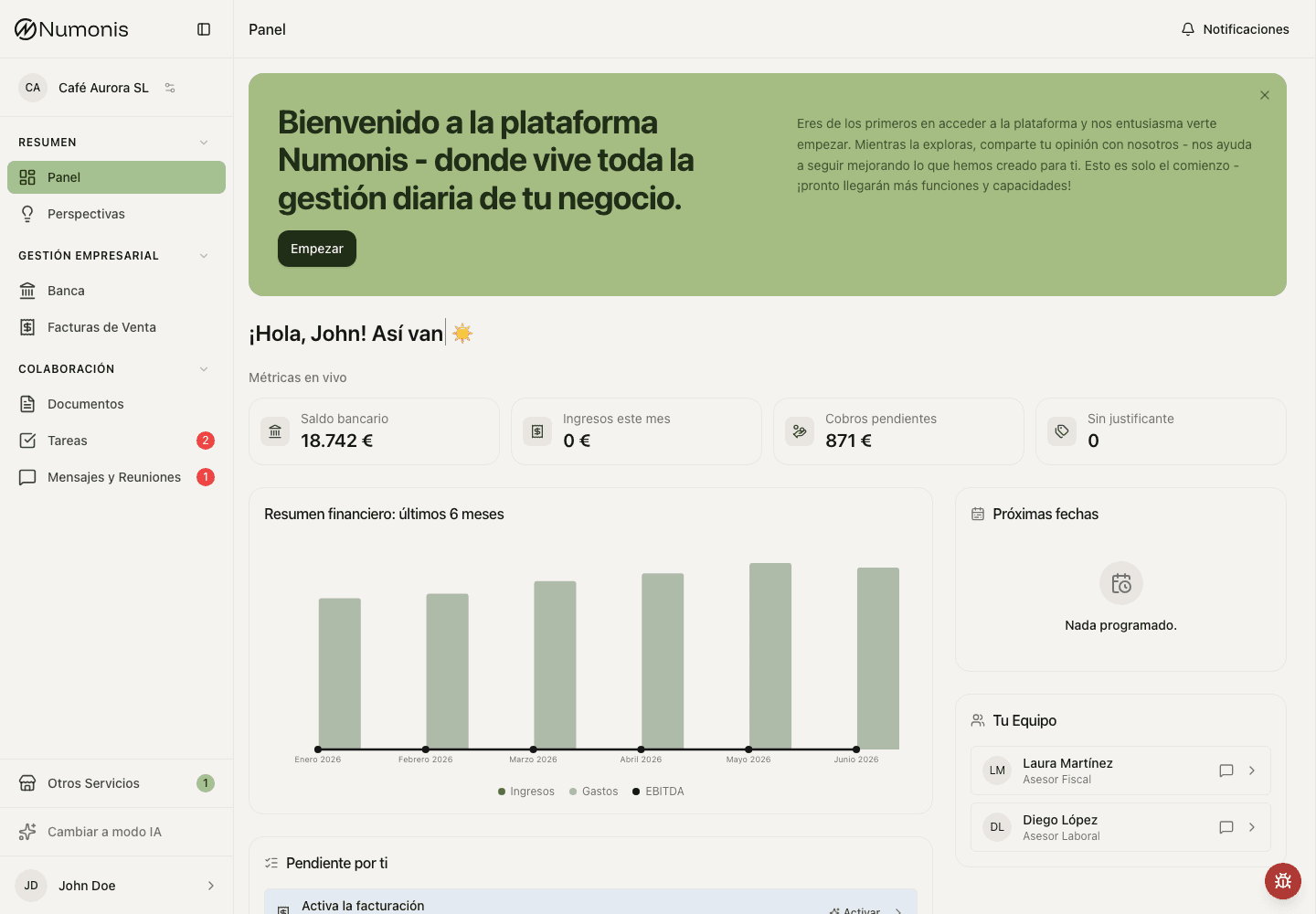
The dashboard helps you review alerts, metrics, and next steps when you start.
During the first week, prepare the information Numonis and your accountant need to work without interruptions.
Day 1: sign in and finish the first setup
- Sign in to the Numonis platform with your email, password, and verification code.
- Confirm that you are in the correct organization.
- Complete the platform tour if it appears.
- Review the day-one checklist on the dashboard.
- Keep important notifications active for tasks, messages, and documents.
Review profile and organization settings
- In Profile settings, add your profile photo if useful.
- Review language, time zone, appearance, and font size.
- In Organization settings, check business details and personal or legal representative details.
- Add or update the business logo if you want it to appear in relevant areas.
- Confirm the primary contact for the organization.
Organize the team
- Invite people who need to upload documents, review invoices, or consult information.
- Make sure each person signs in with their own user account.
- Avoid sharing passwords between team members.
- Assign access carefully and remove people who should not see business information.
Prepare banks and documents
- Connect the bank accounts your business uses for business activity.
- If open banking is not available for a bank account, plan to upload bank statements periodically.
- Upload business and legal documents Numonis or your accountant needs.
- Upload recent supplier invoices, receipts, tickets, and supporting documents.
- Review the first bank transactions and link documents if Numonis shows suggestions.
Review tasks and messages
- Open Tasks to see pending requests from your accountant, payroll specialist, or Numonis support.
- Complete tasks with documents, answers, or clarifications.
- Use Messages & Meetings for questions that do not fit a specific task.
- Include dates, amounts, customers, suppliers, or documents when you ask.
Activate invoicing if you will use it
- Start the invoicing onboarding flow.
- Choose whether to use certified invoicing when the option is available.
- Check business details, tax details, numbering, language, emails, and payment details.
- Create frequent customers and items.
- Preview the PDF before issuing your first invoice.
- Issue an invoice only after reviewing all details.
At the end of the week
Check that the dashboard does not show critical alerts, that your main documents are uploaded, and that you know how to reach Documents, Messages & Meetings, Banking, Tasks, and Sales invoices from desktop and mobile.