Access and navigate the Numonis platform
Sign in, choose your organization, and find the main platform sections.
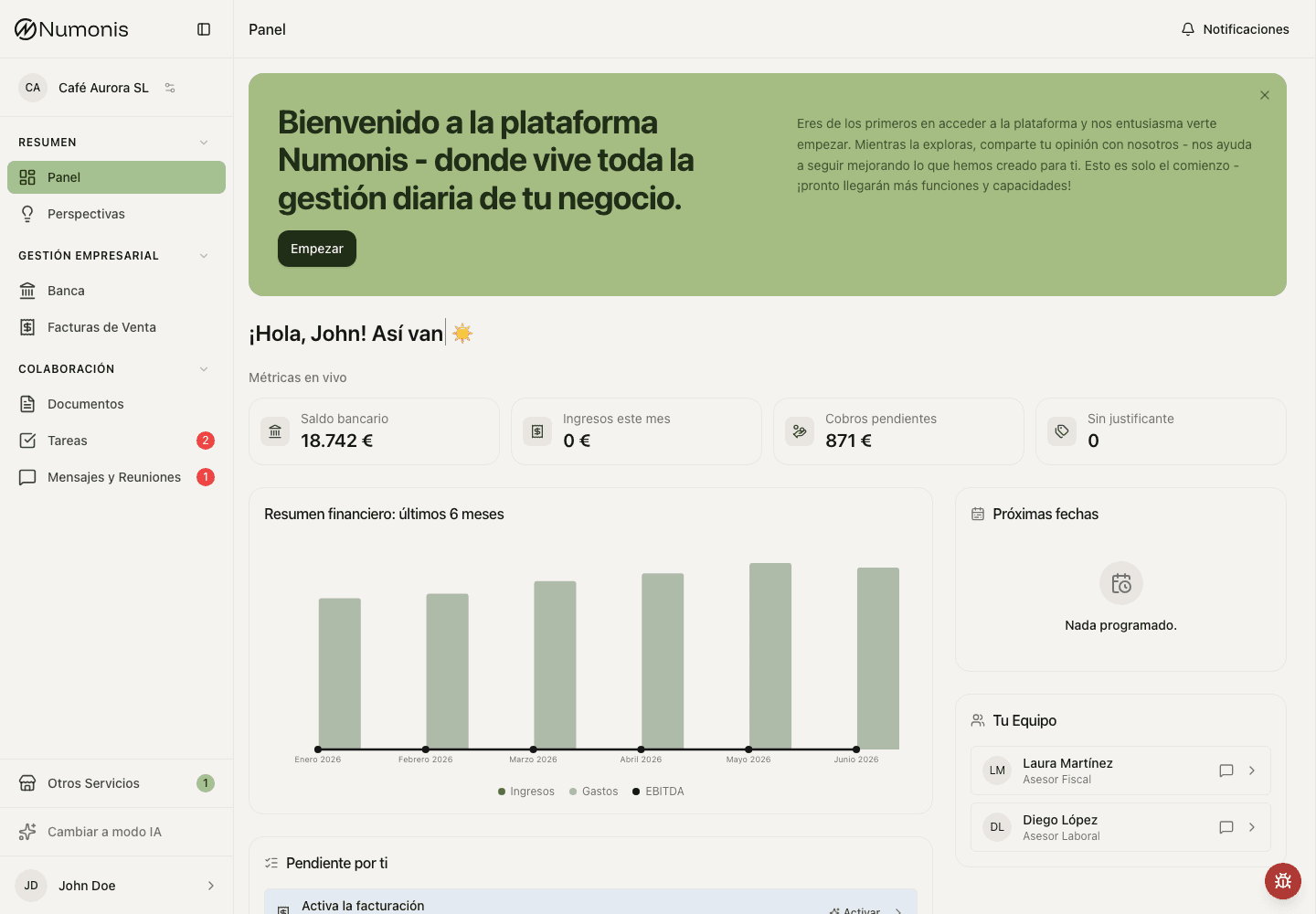
On desktop, use the sidebar to move between dashboard, documents, banking, invoices, tasks, messages, and settings.
The Numonis platform is organized by sections. Each section supports a specific part of your work with the Numonis team: documents, banking, sales invoices, tasks, messages, reports, and settings.
On desktop, the sidebar shows the main platform sections. On mobile, the bottom navigation shows the most-used shortcuts and the More menu contains the rest.
How to sign in
If your account was just created, open the invitation email from Numonis and use the Set your password button to choose your password before signing in for the first time.
- Open the Numonis platform in your browser at
app.numonis.com. - Enter your email and password.
- Check your registered email for the 6-digit verification code.
- Enter the verification code and sign in.
- The first time you sign in, read the platform terms and conditions and accept them to continue. The terms show in Spanish by default — use the language selector above the document to read them in English. Scroll to the end of the document to unlock the accept option. This is a one-time step. If the terms change later, the platform shows a notice that you can close — your access is not blocked, and continued use of the platform for 30 days counts as acceptance of the updated terms. You can view the latest terms at any time at
app.numonis.com/terms. - If you manage several organizations, select the correct organization before reviewing data or uploading documents.
Main platform sections
- Use Dashboard to see alerts, metrics, and next steps.
- Use Banking to connect bank accounts, review transactions, and link documents.
- Use Sales invoices to configure invoicing, create documents, and manage customers and items.
- Use Documents to upload invoices, receipts, statements, contracts, and other supporting documents.
- Use Tasks to respond to concrete requests from your accountant, payroll specialist, or Numonis support.
- Use Messages & Meetings to open conversations with the Numonis team.
- Use Other Services to request support for needs outside accounting and payroll.
Where settings are
There are two settings areas:
- Profile settings: your user account, profile photo, language, time zone, appearance, font size, and notifications.
- Organization settings: business details, logo, primary contact, and team access for the selected organization.
The platform Terms & Conditions are always available from the link on the sign-in page — no sign-in required. Inside the platform, open the Help menu at the top right to find the latest terms with their version number and last-updated date.
On desktop, open profile settings from your avatar at the bottom of the sidebar. Use organization settings for business details and team access. On mobile, open More, then use the profile area at the bottom of the menu for profile settings.
Tips
- Always check the active organization before uploading files or issuing an invoice.
- On mobile, use Documents and Messages & Meetings from the bottom navigation for the most common workflows.
- If you do not see a section, check the More menu or contact Numonis from Messages & Meetings.
Related articles
Using the Numonis platform
Practical guides for using the Numonis platform as a client: documents, invoices, banking, tasks, messages, reports, and settings.
Use the Numonis platform on mobile or as a PWA
Install the Numonis platform on your home screen, navigate on mobile, and upload documents from your phone.